Uninstalling Breadwinner
This article will review how to uninstall Breadwinner from your Salesforce Org. If you need to cancel Breadwinner, please cancel your account before uninstalling.
If you don't cancel, you will continue to get billed because your billing account is not directly connected to the installation.
If you have already uninstalled Breadwinner, please file a support case to have your account canceled.
Uninstalling Breadwinner
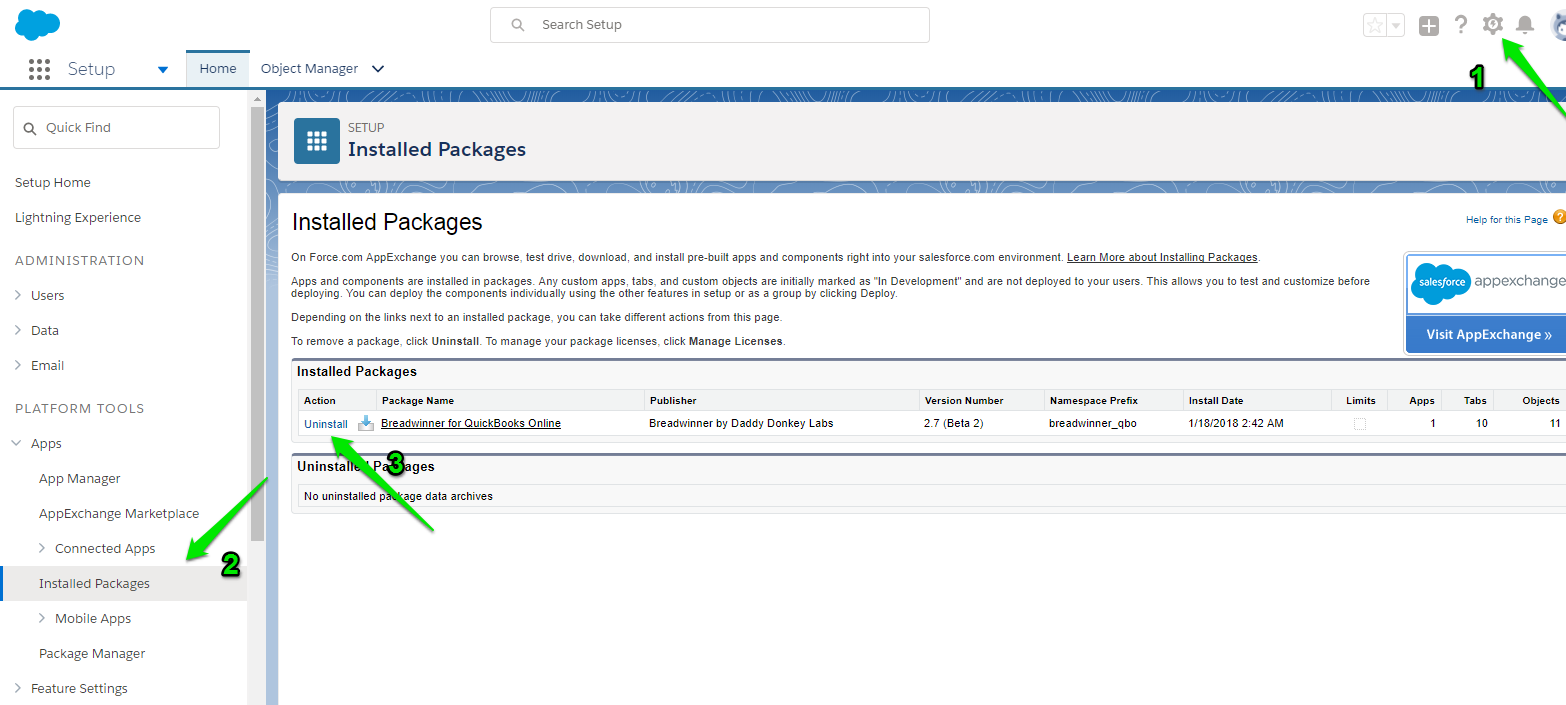
- Go to Salesforce Setup
- Navigate to Installed Package
- Click Uninstall by the Breadwinner package
We're sorry to see you go, and we wish you all the best!
Troubleshooting
Here are a few possible error scenarios you might encounter in Salesforce when trying to uninstall Breadwinner.
Scheduled Jobs
To remove errors about scheduled jobs
- Go to Salesforce Setup
- Click scheduled Jobs
- Delete the job titled Breadwinner
- Try uninstalling again
Permission Sets
To remove permission sets for Breadwinner, you first need to remove users from each of them.
1. Go to Salesforce Setup 2. Click Users > Permission Sets
3. For each permission set that says "Breadwinner", click on that permission set

4. Click the Manage Assignments button

5. Check all users and then click Remove Assignments

6. Go back to Permission Sets, check the Breadwinner permission sets, and click Delete.