Initiate Regular Sync
Introduction
The following is an example to initiate the regular sync for a Custom Object integrated with Breadwinner. The NetSuite Custom Object ID (internalId) is required to run the Regular Sync.
Map<String, Object> requestJSONMap = new Map<String, Object>();
requestJSONMap.put('objects', new List<Object>{17});

String reqJSON = JSON.serialize(requestJSONMap);

Map<String, Object> reqObj = new Map<String, Object>();
reqObj.put('version', '1.0');
reqObj.put('action', 'initiateRegularSync');
reqObj.put('requestJSON', reqJSON);

//  Place a request to Breadwinner Global API
Map<String, Object> resp = breadwinner_ns.BreadwinnerNetSuiteAPI.call(reqObj);
System.debug(resp);
Limits
- Currently, this action is supported for Custom Objects only.
- This API call can be executed for only one custom object at a time. If multiple custom objects are required, use an Apex chain to process each separately.
- DisableBreadwinnerSync: If this checkbox is selected on the NetSuite Object record, Breadwinner stops the regular sync for that object. You can use the Initiate Regular Sync action to run your own regular sync for that specific custom object.
- Set up your own Flow, Apex scheduled job, or batch process to run it at the interval you need.
Disabling the Regular Sync for a Custom Object
Once your scheduled Global API job is syncing a custom object, we recommend turning off the standard Breadwinner regular sync for that object. The object is then synced only by your scheduled job, and the two syncs don't process the same records at the same time, which could create duplicates.
Note: Please complete these steps only after your scheduled job is set up and confirmed working.
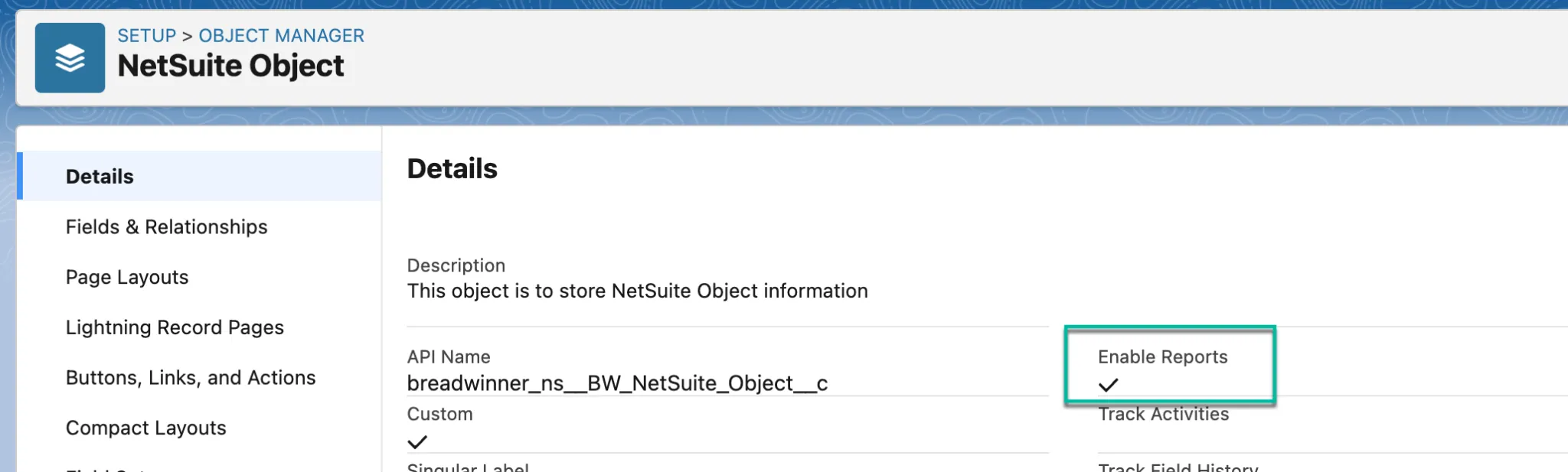
- Enable the Reports for the “NetSuite Object” object
Open the Object Manager and search for the “NetSuite Object” object

- Ensure that Reports are enabled for this object.
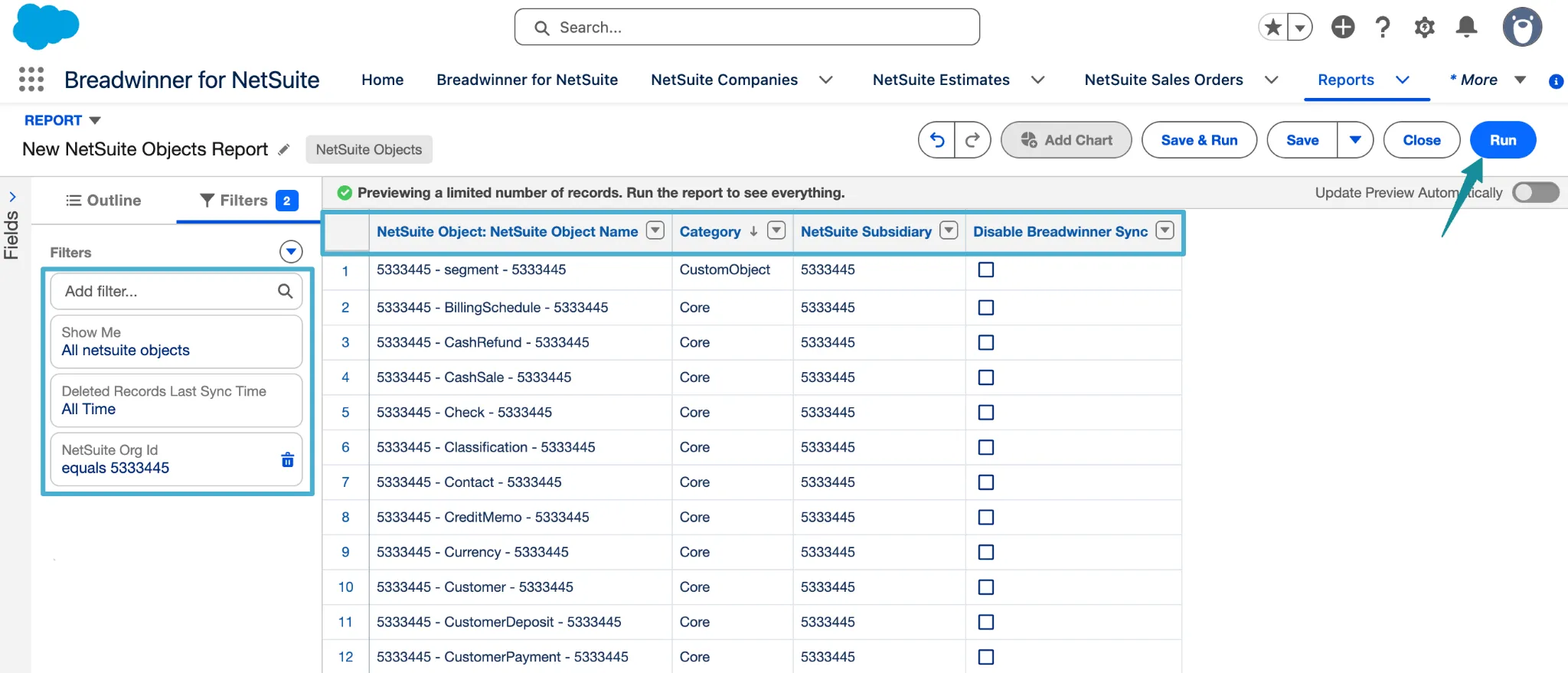
- Run the report
Ensure your report is filtered for "All NetSuite Objects" (not "My NetSuite Objects") and Subsidiary equals the connected NetSuite Org ID, and show whatever fields you think necessary. We recommend the Category, Subsidiary, and Disable Breadwinner Sync as columns. And run the report
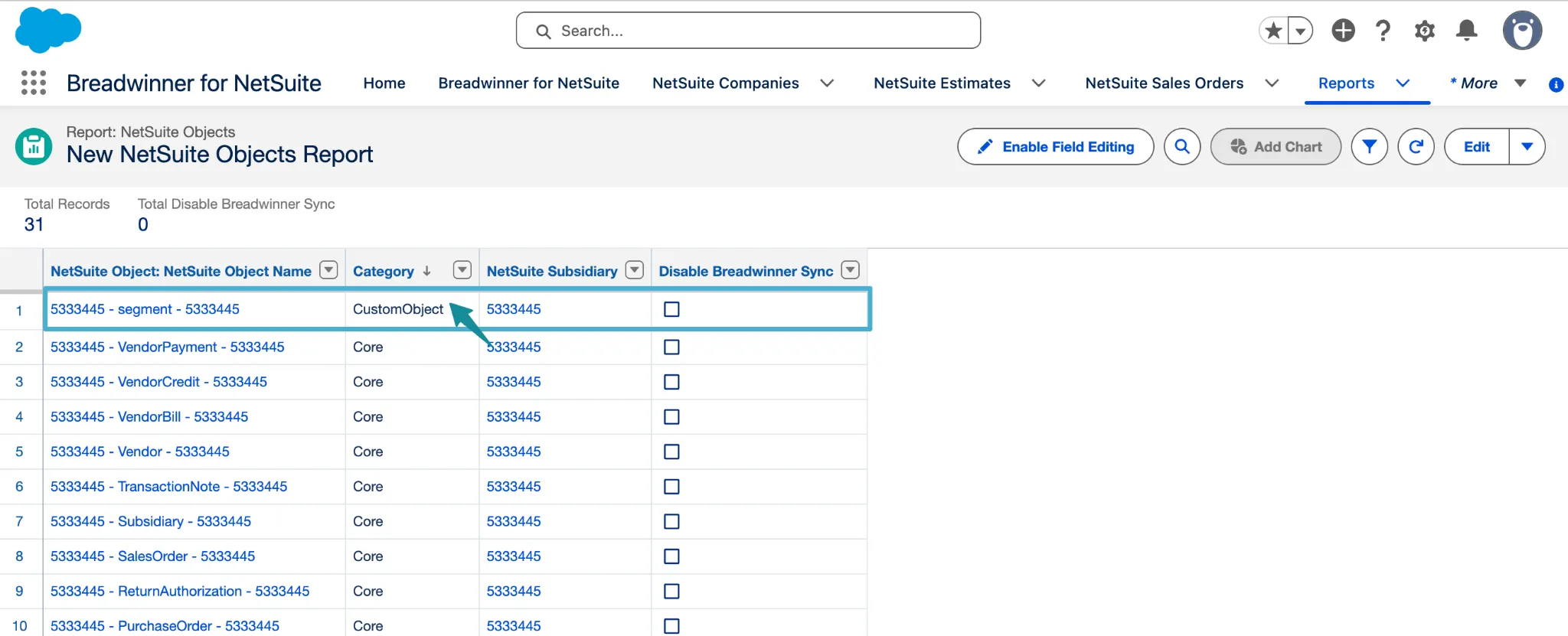
- Finding the NetSuite Custom object record
Sort the report by Category. Custom objects are listed with the category CustomObject. Click the record for the custom object whose regular sync you want to turn off.
- Turn off the regular sync for the custom object
On the record, scroll to the Regular Sync Information section, tick Disable Breadwinner Sync, and save.
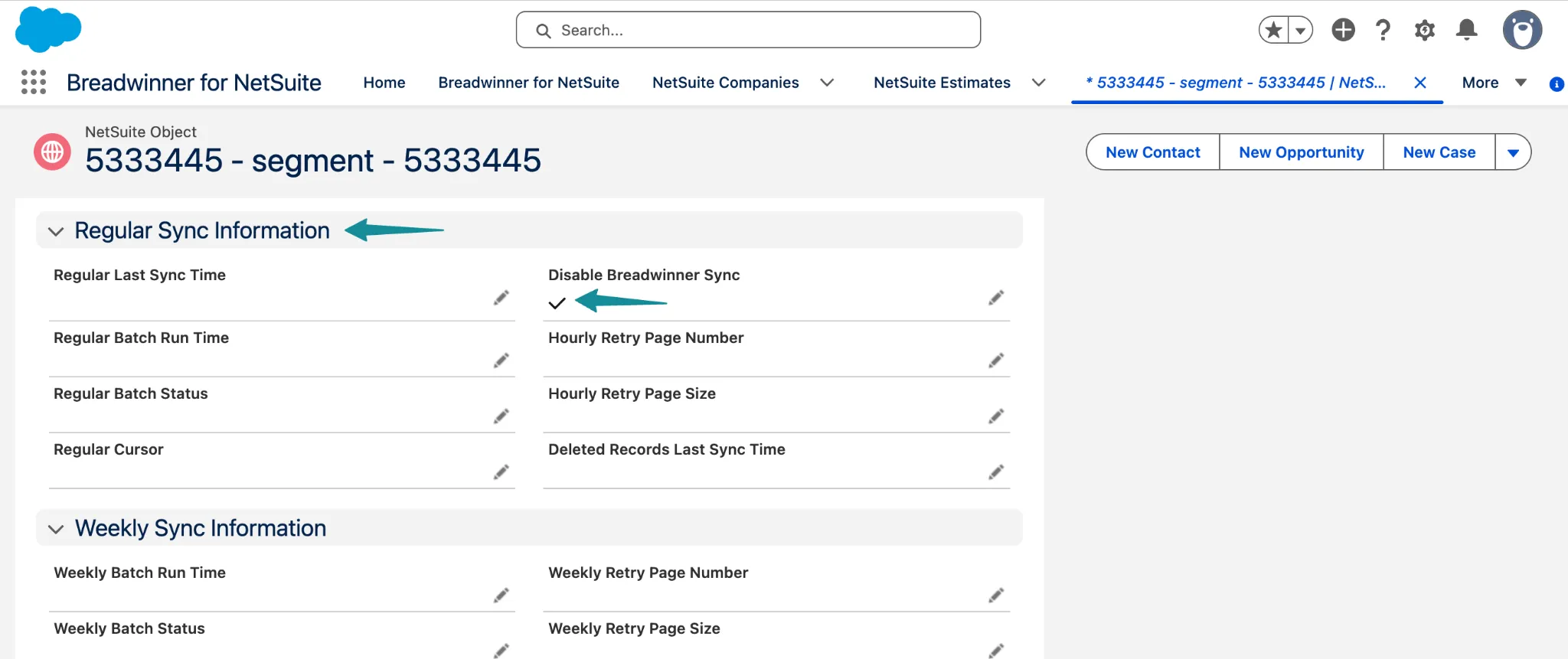
Note: The standard Breadwinner regular sync now skips this custom object, and its regular sync is carried out by your scheduled Global API job. The weekly sync continues to include this object.
Example of how to schedule the Job
Step 1: Installation of the script file:
First, download the Apex class file below. You'll then need to add it to your Salesforce org and schedule it.
Step 2: Update the class
Open the file and replace the example ID with your custom object's NetSuite Object ID. You can find the ID in the NetSuite Object ID field on the custom object's NetSuite Object record.
Step 3: Add the class to Salesforce
- In your sandbox, go to Setup → Apex Classes → New.
- Paste the contents of the file and click Save.
Step 4: Schedule the class
- Go to Setup → Apex Classes and click Schedule Apex.
- Enter a Job Name and select BWCustomRegularSync.
- Select Cron Expression and enter 0 0 * * * ? * BWCustomRegularSync. This runs the sync every hour, on the hour.
- Click Save.
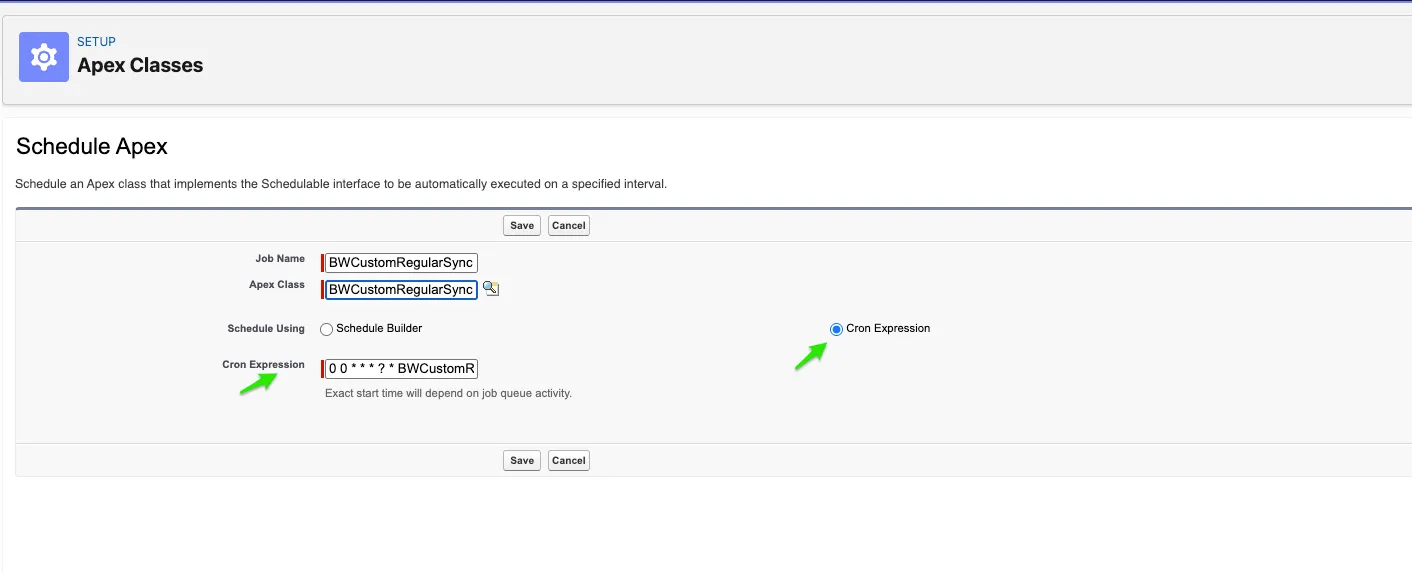
You can schedule the class however you like. A single Salesforce scheduled job can run at most once an hour.
Step 5: Check that it's running
Setup → Scheduled Jobs lists your job with its Next Scheduled Run. After it runs, Setup → Apex Jobs shows an HourlySyncBatch job.