How To Specify Your NetSuite Primary Contact in Salesforce Using Breadwinner
In order to see the Primary Contact information on NetSuite Companies in Salesforce, you must add a custom field to your NetSuite org. Once this field is added, your Primary Contact data can be seen in Salesforce after our regular, weekend sync of all data. To immediately see the updated information in Salesforce, navigate to the Troubleshoot/General menu of the Breadwinner for NetSuite Tab in Salesforce, open the Restarting and Updating section of the page and click the Restart Weekly Sync button.
You can create a Primary Contact custom filed of any type including Entity Custom Fields for Customers and Vendors, Transaction Body Fields (Sales Orders, Invoices, etc.), or any other Breadwinner supported Objects.
Step 1
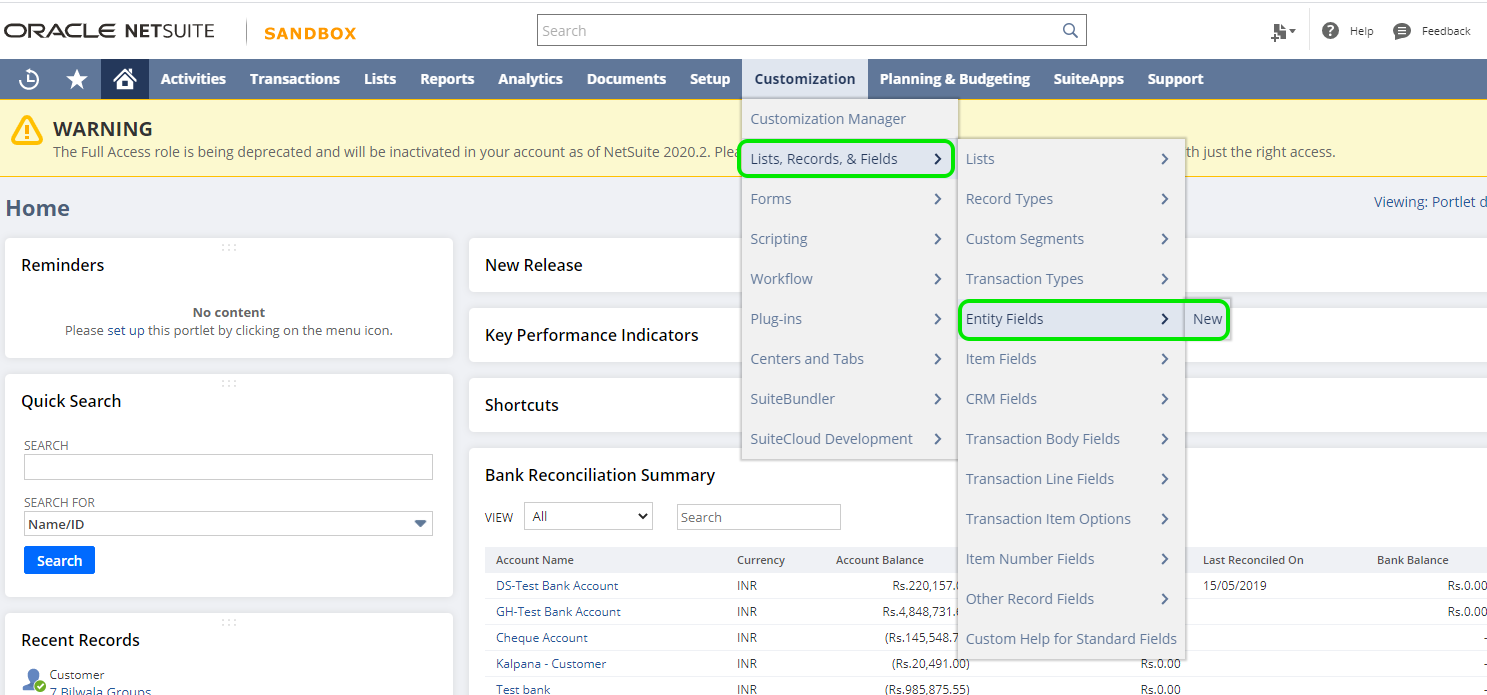
Create a new formula field on the Entity object by going from Customization → Lists, Records, & Fields → Entity Fields → New.
Step 2
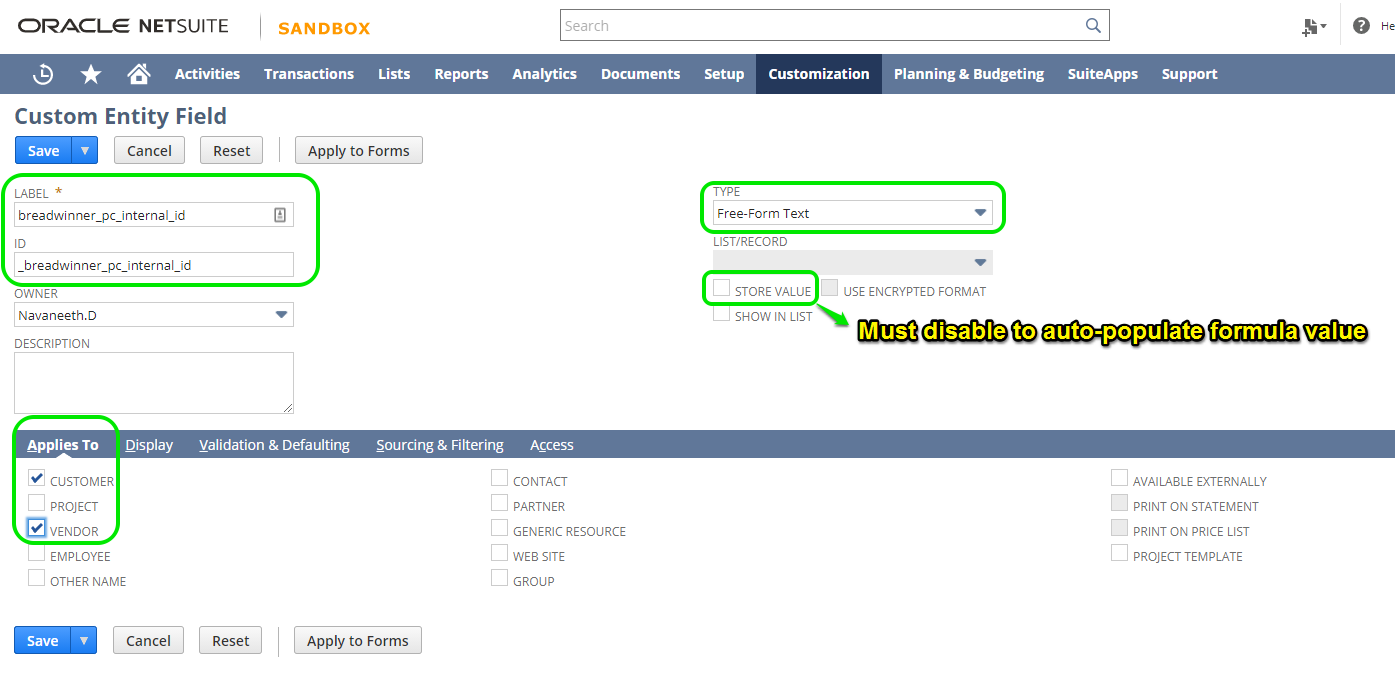
On the Custom Entity Screen enter the following information for creating the field
- Label: breadwinner_pc_internal_id
- ID: _breadwinner_pc_internal_id
- Type: Free-Form Text
- Store Value*: Un Checked
In the Applies To section lower on the screen, select the checkboxes for Customer and Vendor.
Step 3
Navigate to the Validation & Defaulting section in the lower part of the screen. Make sure the Formula checkbox to the right is selected, and enter the Formula below in the Default Value text area.
Formula:
{contactprimary.internalid} || ' - ' || {contactprimary.entityId} |
|---|
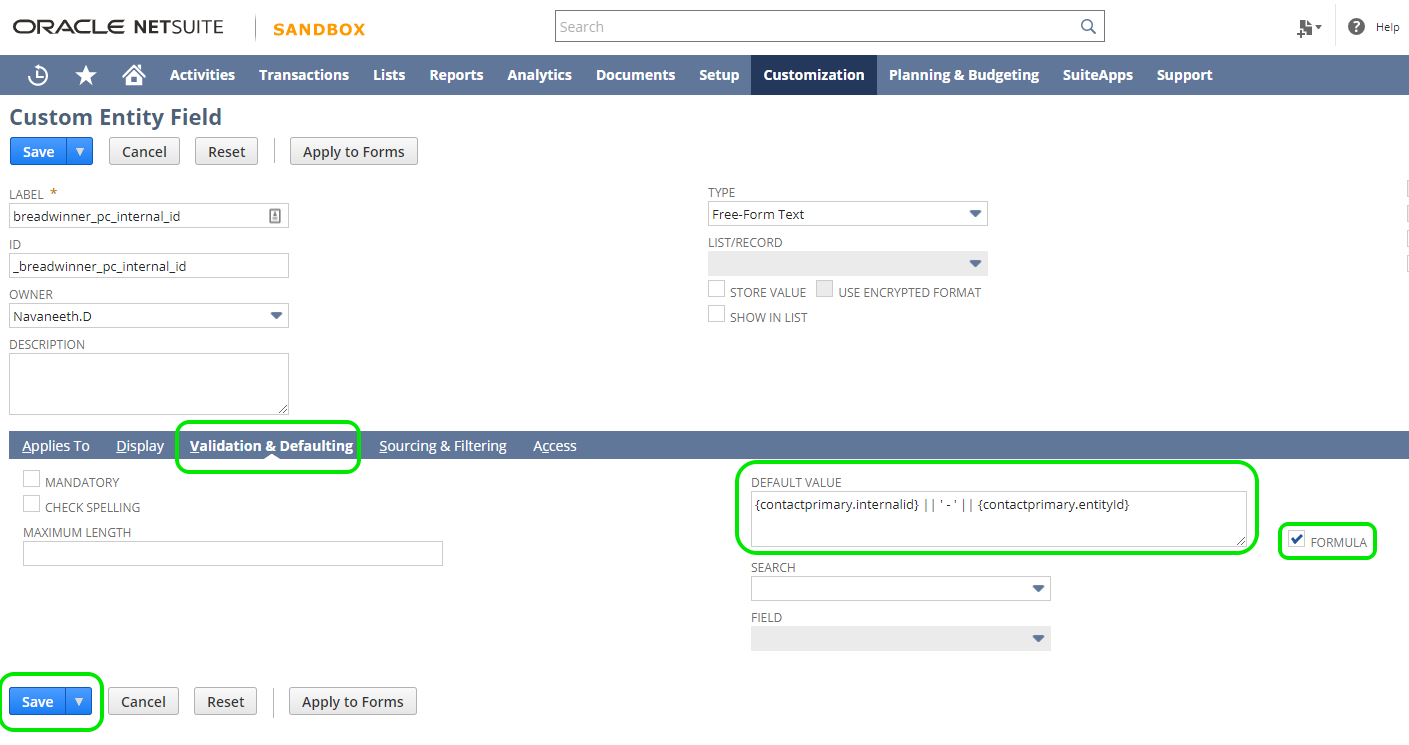
Click to Save this new field and your Primary Contact.
Step 4
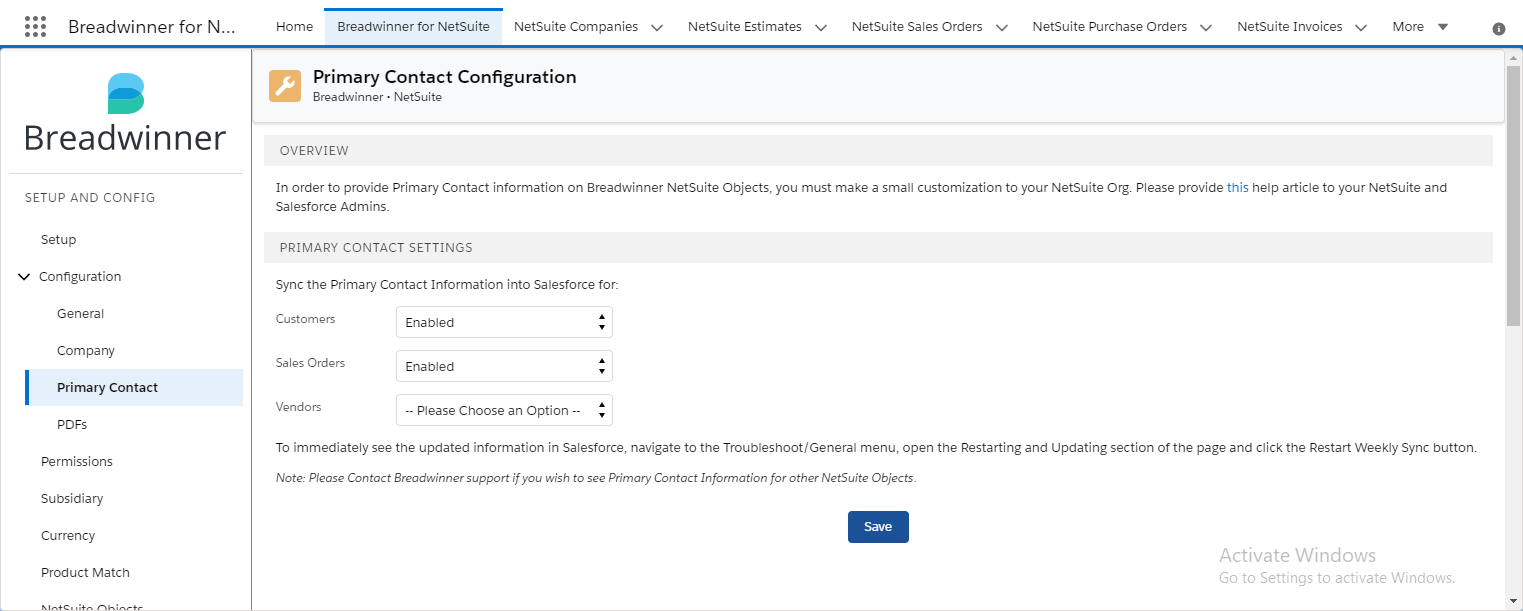
Please configure the Primary Contact Settings on the Primary Contact/Configuration menu of the Breadwinner for NetSuite Tab in Salesforce, and your Primary Contact data will flow into Salesforce in upcoming Breadwinner syncs.